Apps
A container you deploy, scale, and put on a domain. The starting point for everything else in a project.
On this page
What it is
An app is one container image running in your project, with the replicas, resources, storage, and networking that go with it. It is the primary thing klickops deploys, and almost everything else on the platform attaches to one: a domain routes to an app, a volume mounts into an app, a database binds its credentials into an app.
klickops starts at the container image. It does not build your code unless you connect a repository, and it does not run a pipeline of its own. If you already have an image, you are two minutes from a URL.
When you'd use it
- You have a container image and want it running with a hostname and TLS.
- You have a Git repository and want klickops to build it for you.
- You are replacing a docker-compose service or a Heroku dyno with something that survives a node reboot.
A task that runs on a schedule and exits is a scheduled job, not an app. Apps are expected to stay up, so a container that exits cleanly will be restarted.
Deploy an app
- Open your project, go to Apps, then Deploy app.
- Choose the source. Either a container image, or a repository klickops builds for you. Paste an image reference and klickops inspects it, then pre-fills the port, the command, and any environment the image declares.
- Confirm the port your app listens on. The suggestion comes from the image, and it is usually right.
- Set Copies, the number of replicas. One is the default and changes later without a redeploy. CPU and memory are not yours to pick: klickops right-sizes them to what the container uses.
- Under Who can reach it? pick Anyone (public) if you want it public now. The default, Private, keeps it inside the project; you can add a domain later from the app's Domains tab.
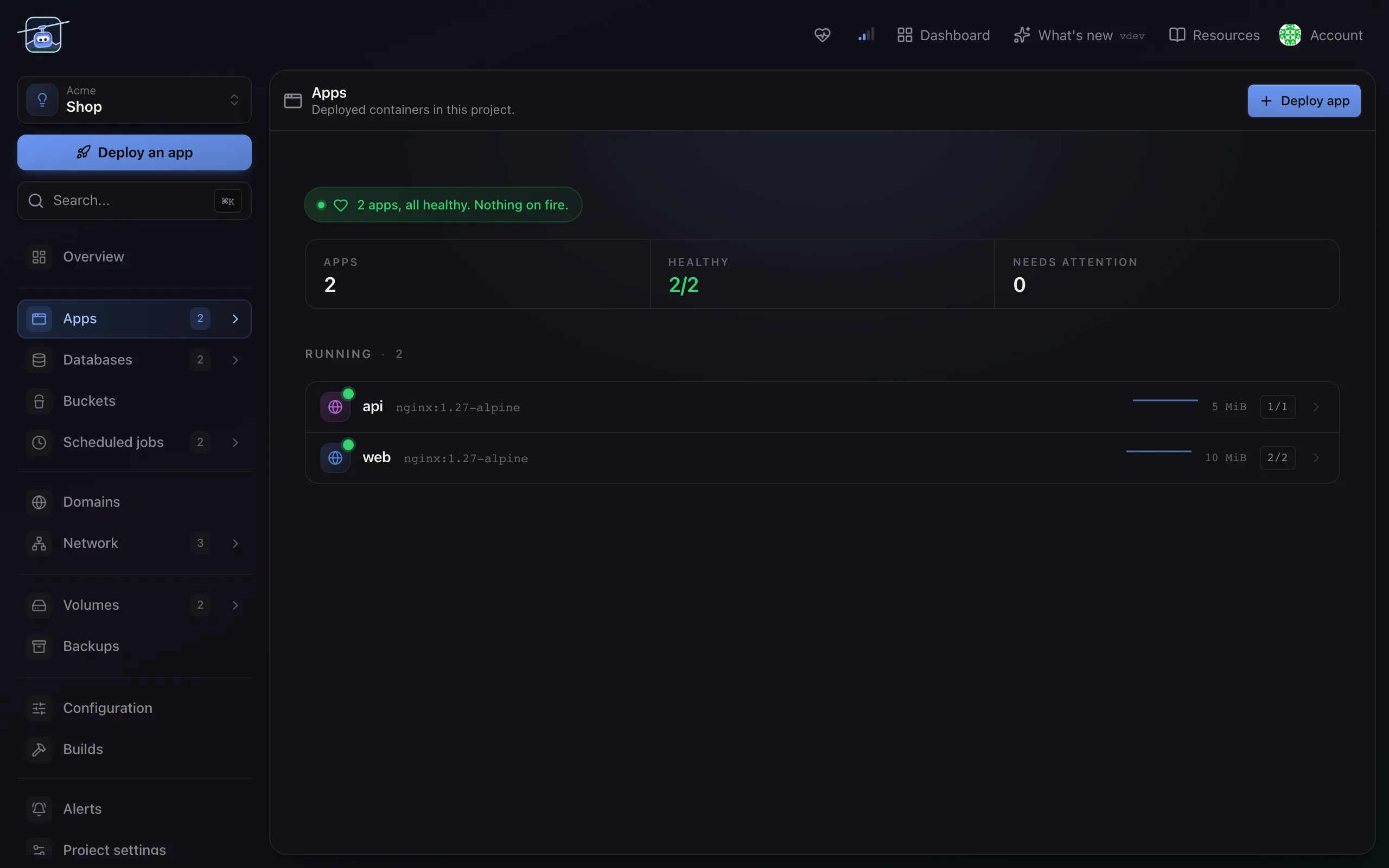
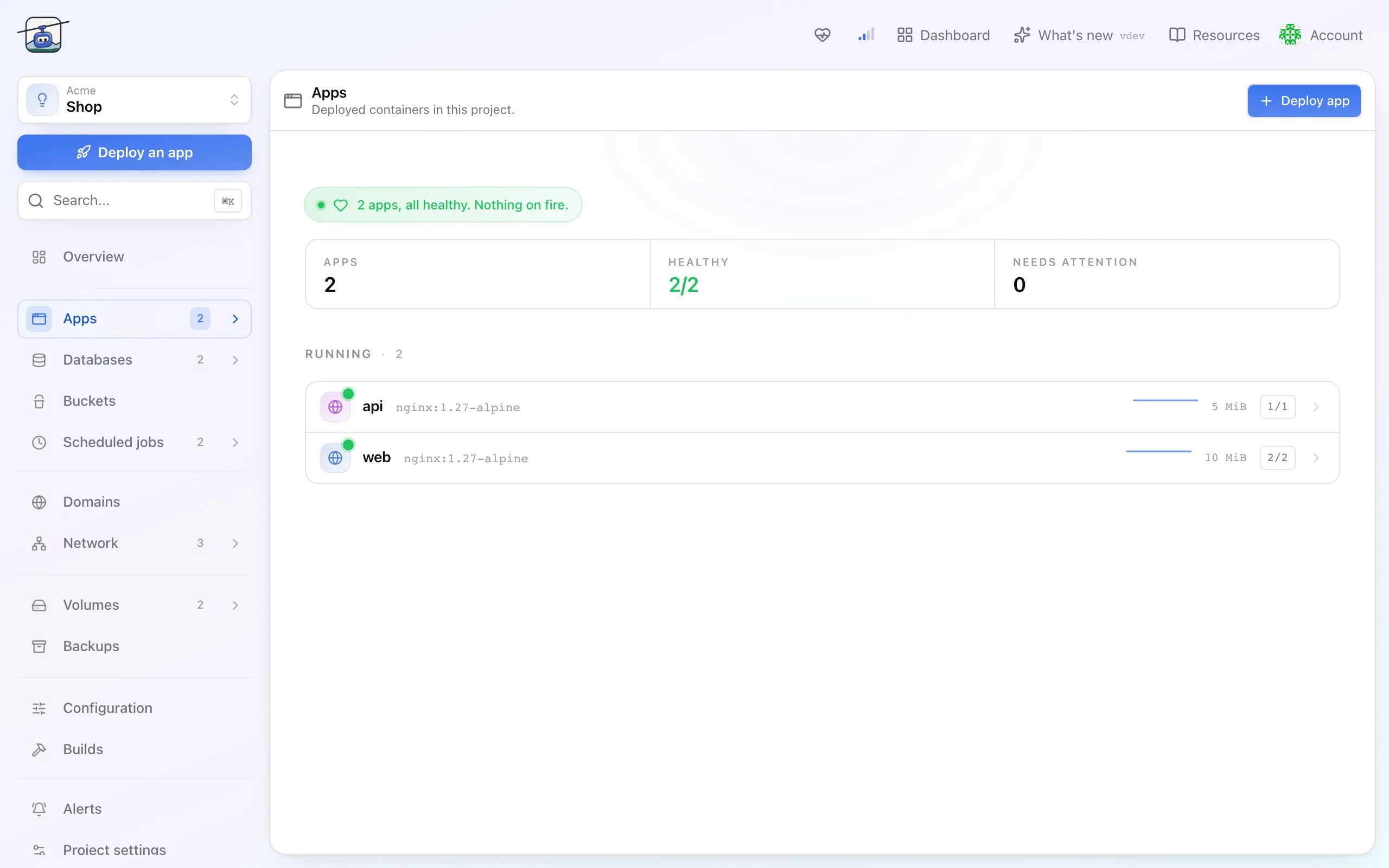
- Review and deploy. The app appears in the list with a live status while the rollout runs.
Operating it day to day
Every app opens on Overview, and the tab strip is the whole surface.
| Tab | What lives there |
|---|---|
| Overview | Status, current image, recent revisions, rollback |
| Logs | Live and historical container output |
| Metrics | CPU, memory, network traffic, restarts, storage used |
| Scaling | Replica count and autoscaling rules |
| Domains | Hostnames, TLS, redirects, access mode |
| Firewall | Who may reach this app, and what it may reach |
| Configuration | Environment variables, secrets, bindings |
| Storage | Volumes mounted into the container |
| Builds | Appears when the app is built from a repository |
| Previews | Per-pull-request environments, when a repo is connected |
| Shell | An interactive session inside a running container |
| Backups | Restore points covering the app and its volumes |
| Advanced | Command, health checks, rollout strategy, security, labels, release command and extra containers |
Settings reference
| Setting | Default | What it does |
|---|---|---|
| Image | none | The container image and tag. Changing it triggers a rollout, and the confirm dialog shows old and new. |
| Port | from image | The port your container listens on. Services and domains route to it. |
| Copies | 1 | How many replicas run. Scaling to zero stops the app without deleting it. |
| Autoscaling | off | Adds replicas between a floor and a ceiling based on CPU. |
| CPU and memory | auto-sized | Right-sized to what the container actually uses. There is no size to pick. |
| Health check | on, TCP | Traffic is withheld until the port accepts a connection. A TCP check needs no health endpoint; switch it to HTTP if you have one. |
| Security | automatic | Follows what the image declares: an image with a non-root user runs as that user, and an image that runs as root still starts, isolated where the cluster supports it. Override it on the Advanced tab. |
| Watch for new tags | off | In the Image dialog: tells you about a newer tag, or rolls it out automatically. |
Limits and gotchas
- A rollout is not instant. klickops waits for the new pods to pass their probe before it retires the old ones, so a broken image leaves the previous version serving. Apps with a volume are the exception: the old copy stops first so the new one can attach the disk.
- Scaling to zero keeps the storage. The app stops costing compute and keeps costing storage.
- The shell is not a deploy target. Anything you change in a running container is gone at the next rollout. Put it in the image or in configuration.
- Environment changes restart the app. The save banner says how many pods will roll before you commit.
Deleting an app keeps its volumes: they stay in the project as detached storage, marked Orphaned on the Volumes page, until you delete them there.